
Lighthouse Tech — Official Documentation
TAMI® Guide
User Manual — TAMI® Smart Glasses
- Version
- 1.0
- Last updated
- June 2026
- Platform
- iOS & Android
Getting Started
Welcome to TAMI® — your assistive mobility eyewear. This manual will guide you through setup, configuration, and daily use of your device and the companion app.

What You'll Need
- TAMI® smart glasses
- A smartphone with iOS or Android
- Bluetooth connectivity enabled
- Internet connection for initial app download
Tip: Keep your TAMI® glasses charged before beginning setup. A full charge takes approximately 4–5 hours and provides up to 5 hours of continuous use.
Before You Begin
- Charge your TAMI® glasses fully using the included magnetic charging cable.
- Ensure Bluetooth is enabled on your phone.
App Installation
The Tami Guide app is available on both iOS and Android platforms. Download and install it to manage your glasses remotely.
iOS
- Open the App Store.
- Search for "Tami Guide".
- Tap Get, then authenticate with Face ID, Touch ID, or your Apple ID.
- Once installation completes, tap Open.
Scan to download
Android
- Open Google Play Store.
- Search for "Tami Guide".
- Tap Install.
- Grant any requested permissions, then tap Open once installation is complete.
Scan to download
Introduction
The Tami Guide app allows you to configure and manage your TAMI® smart glasses via Bluetooth Low Energy (BLE). Through the app you can:
- Pair and connect to your TAMI® smart glasses
- Adjust vibration feedback intensity and behavior
- Configure detection range
- Update device firmware wirelessly (OTA)
- Locate your glasses using the Find My Glasses feature
- Receive firmware update notifications and monthly newsletter via the in-app Inbox
Onboarding & Setup
4.1 First Launch & Onboarding
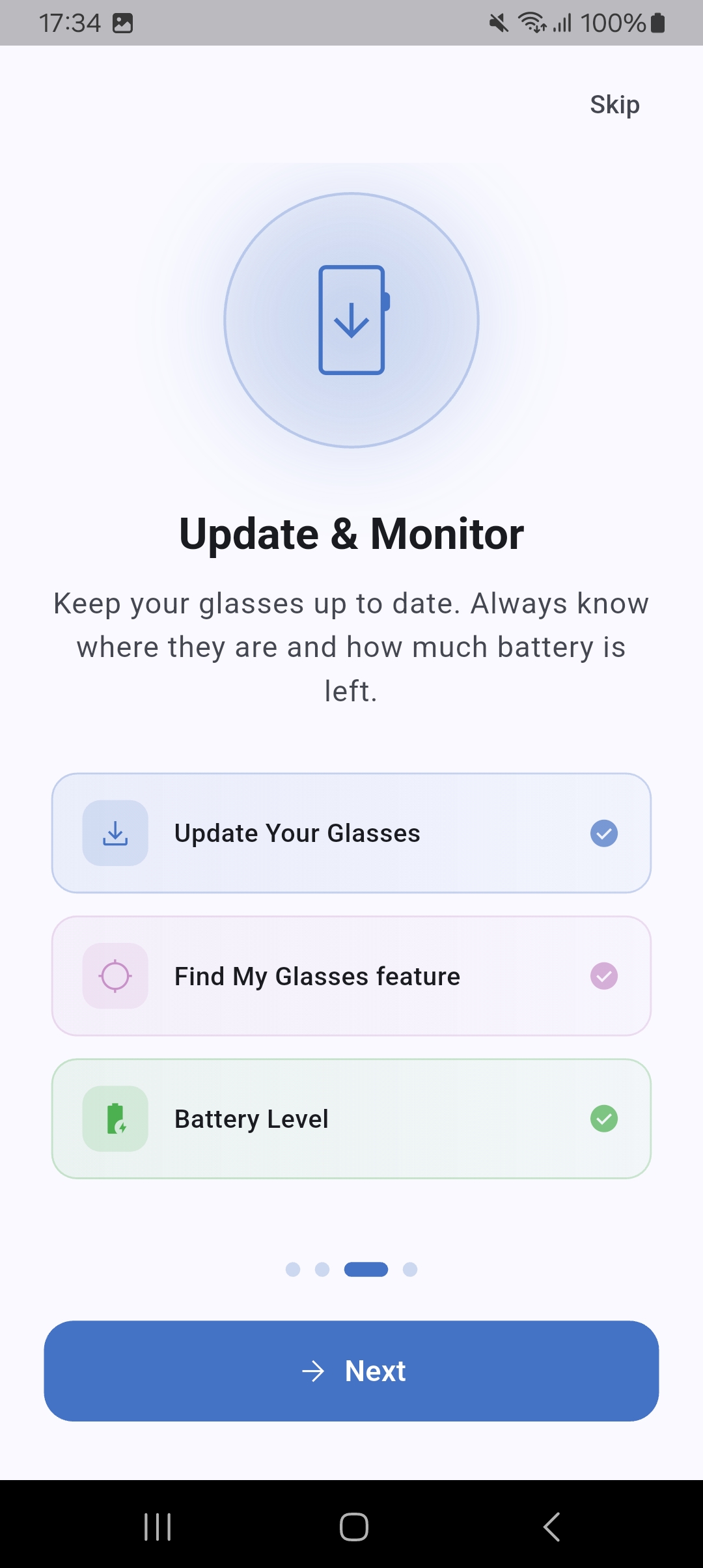
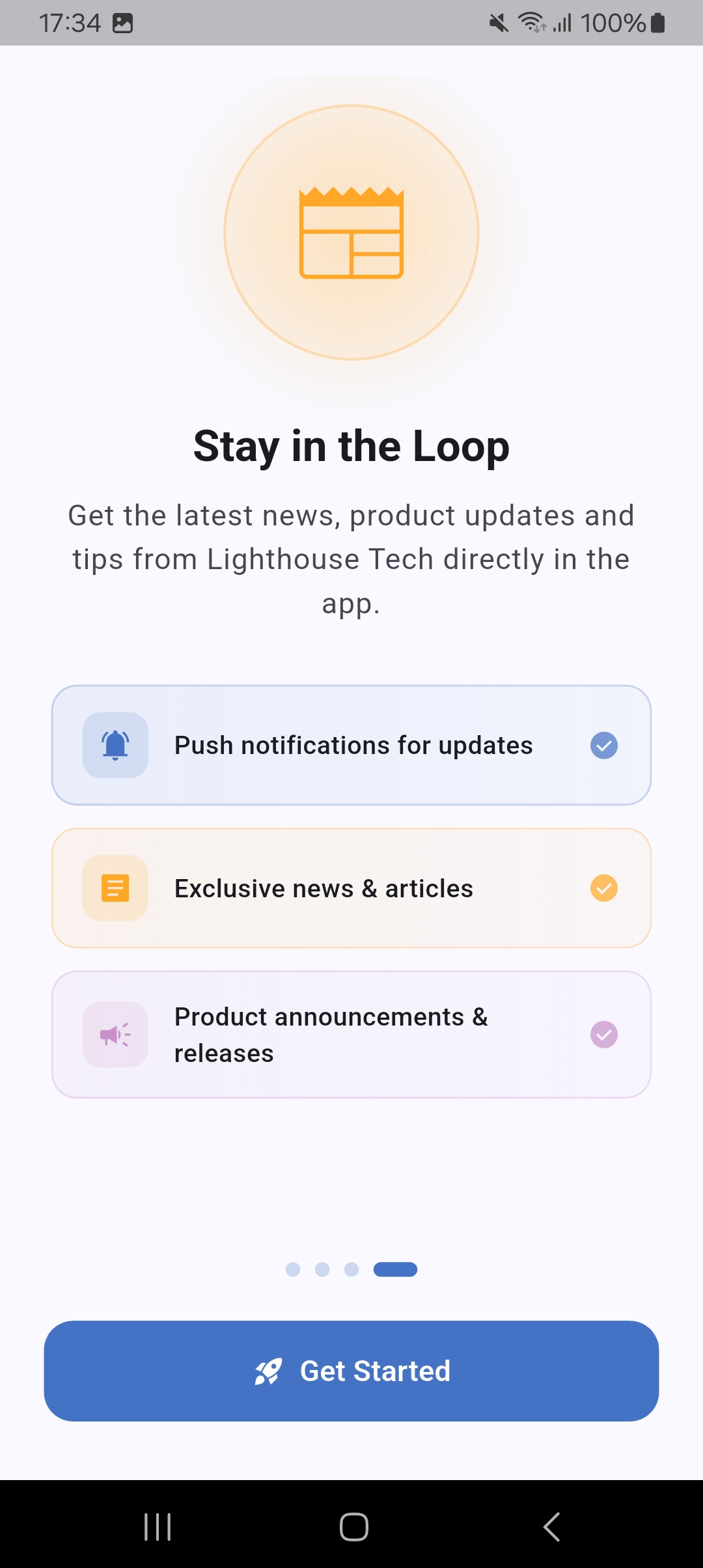
When you open the app for the first time, a 4-step onboarding tutorial introduces the main features.
| Slide | Content |
|---|---|
| 1 · Welcome | Welcome — introduction to the Tami Guide |
| 2 · Connect | Connect — pairing, indoor/outdoor modes, vibration and audio feedback |
| 3 · Manage | Manage — OTA updates, Find My Glasses, battery monitoring |
| 4 · Stay updated | Stay updated — firmware update notifications and monthly newsletter |


4.2 Account Registration & Login
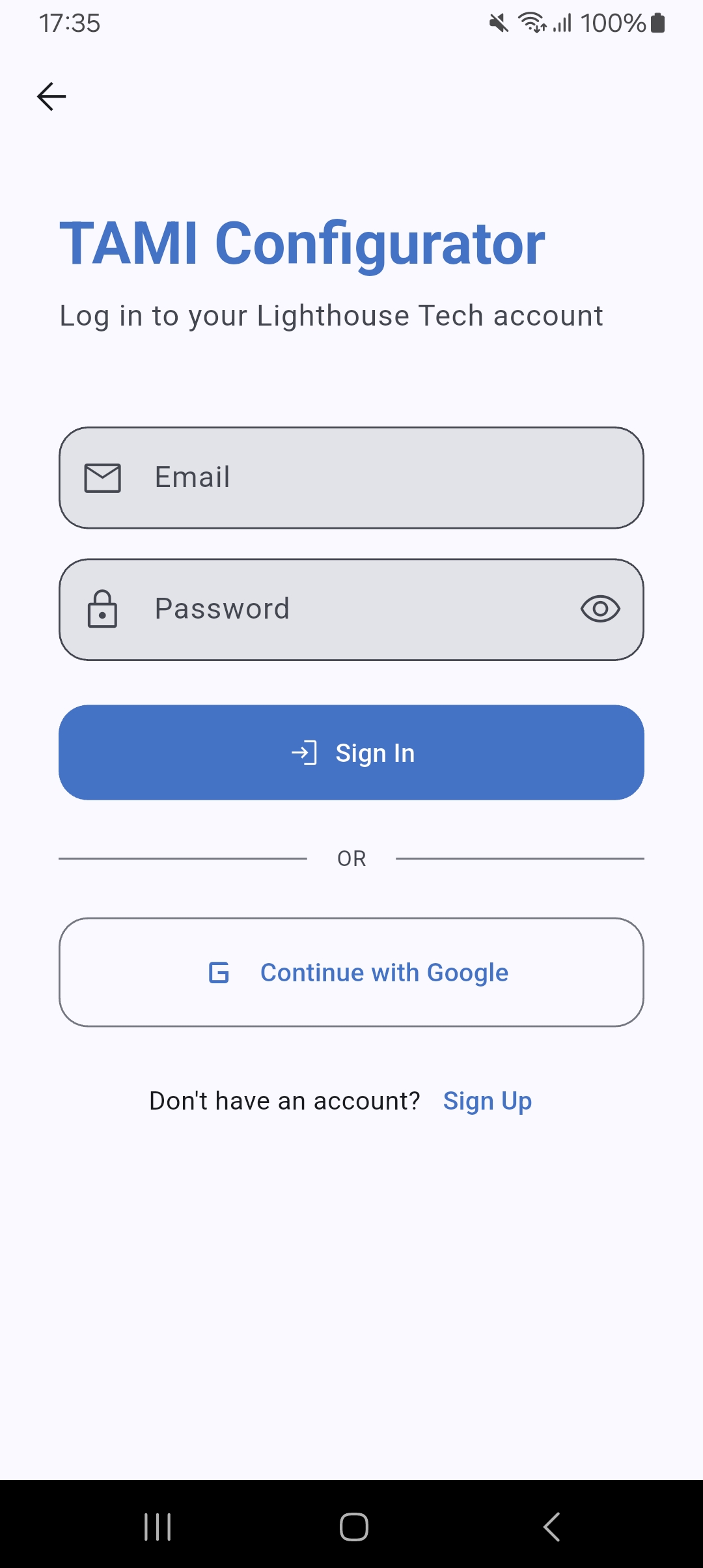
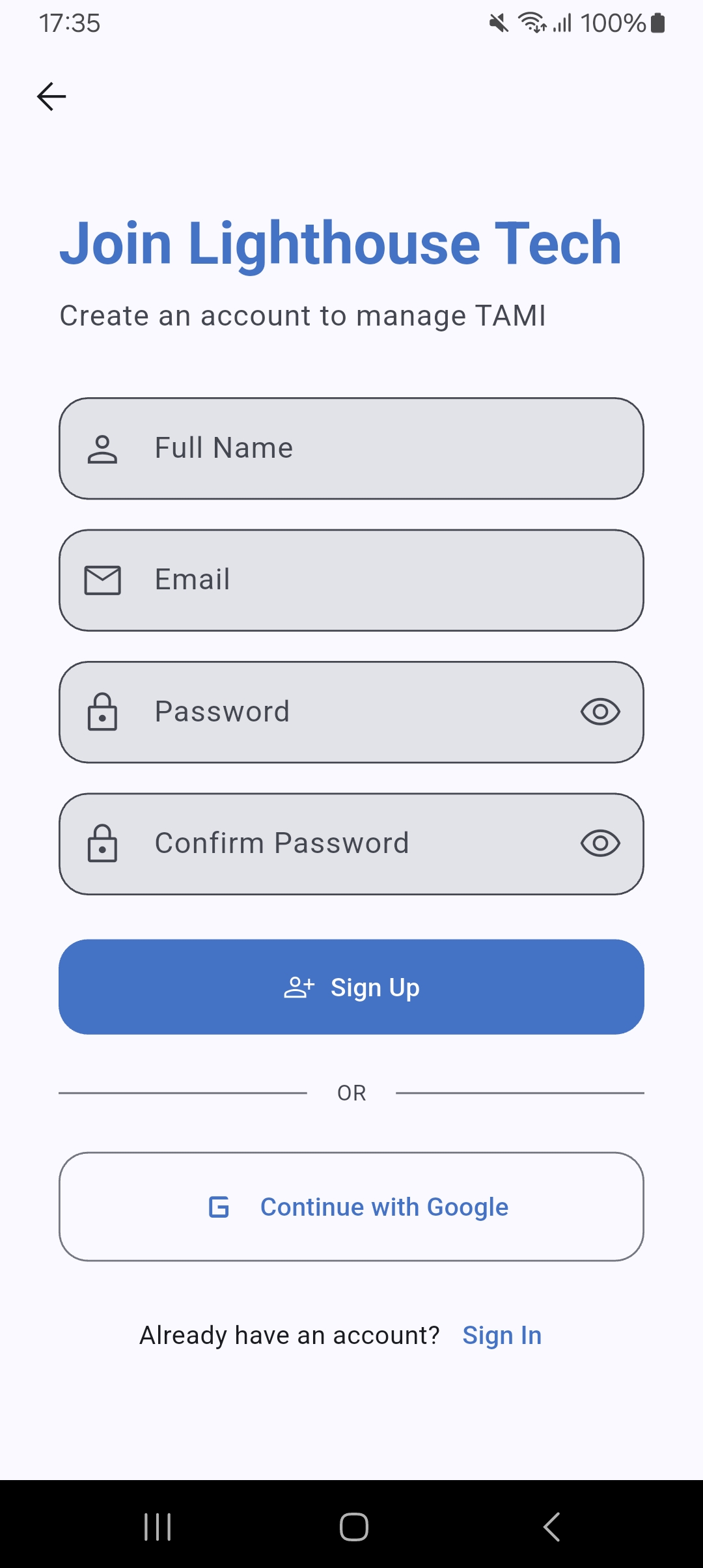
- Tap Register to create a new account, or Login if you already have one.
- Enter your email address and password.
- After successful authentication you will be taken to the main Home screen.

Connecting a Device
- Open the Home tab.
- Make sure Bluetooth is enabled on your phone.
- Power on your TAMI® glasses — they will appear in the Available Devices list within a few seconds.
- Use the search field at the top to filter by device name if needed.
- Tap a device from the list to connect.
- A progress dialog will appear during connection. Wait until it completes.
- Once connected, the device moves to the Connected Devices section at the top of the screen.
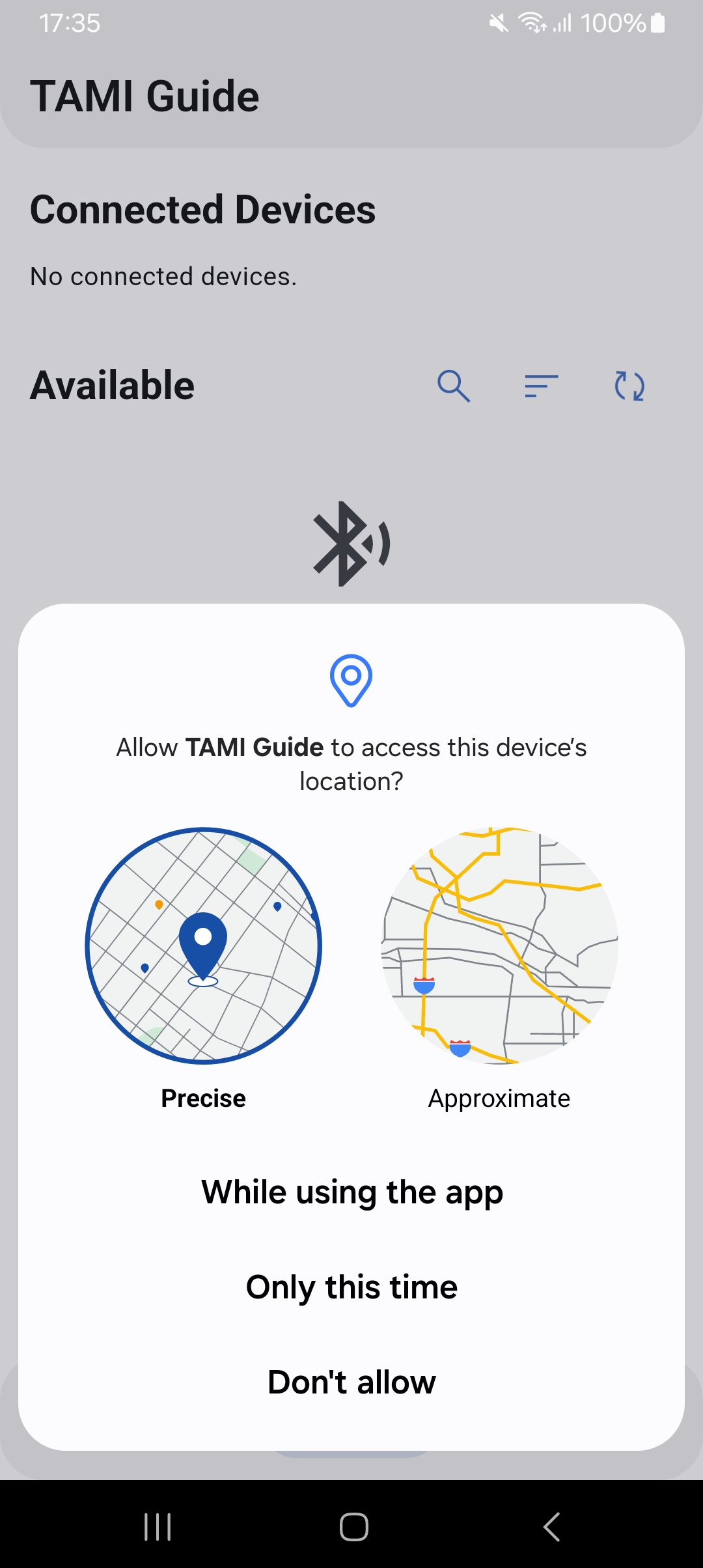


The app supports connecting to one device at a time in normal use. Connecting to multiple devices simultaneously is only possible when both devices are in maintenance mode (e.g. during firmware updates).
Disconnecting a device
Swipe the connected device card to the side, then confirm disconnection.
Device Control Overview
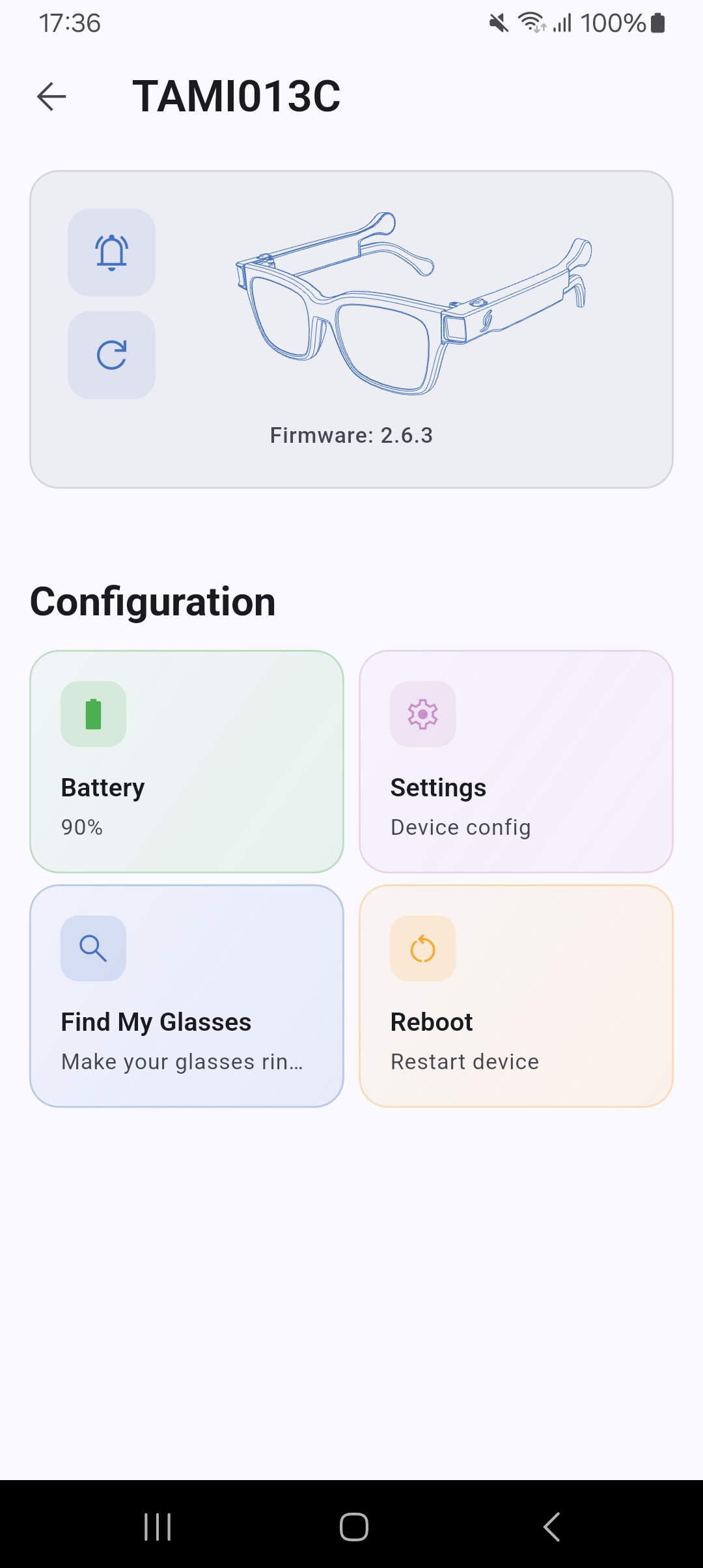
Tap a connected device card to open its control page. The page is organized into the following action cards:
| Card | Description |
|---|---|
| Battery | View master and slave battery levels and charging status |
| Settings | Open Device Settings (vibration, range, etc.) |
| Find My Glasses | Make the glasses ring/beep to locate them |
| Reboot | Restart the device (requires confirmation) |
| FW Update | Visible only when the device is in maintenance mode |
Find My Glasses
Use this feature when you cannot physically locate your glasses.
- From the Device Control page, tap Find My Glasses.
- A dialog will open showing the current status.
- Tap Start — the glasses will begin ringing/beeping.
- An animated pulsing icon confirms the glasses are actively ringing.
- Tap Stop (shown in red) to silence the glasses manually.
- The glasses will also stop automatically after a preset timeout.
- Tap Close at any time to dismiss the dialog (this also stops the ringing).

Device Settings
From the Device Control page, tap Settings to access the full configuration panel.
9.1 Vibration Intensity
This setting controls how strong the vibration feedback is.
- In Device Settings, locate the Vibration Intensity section.
- Move the slider to select the desired level.
- The setting is saved automatically when you release the slider.
| Slider Position | Display | Behavior |
|---|---|---|
| 0 | Off | No vibration |
| 1 | Lv. 1 | Low intensity |
| 2 | Lv. 2 | Medium intensity |
| 3 | Lv. 3 | High intensity |
| 4 | Lv. 4 | Maximum intensity |
9.2 Feedback Behavior (Range)
This section lets you configure how and when the glasses provide feedback based on obstacle distance. First, select the operating environment using the toggle at the top of the section:
| Mode | Best for |
|---|---|
| Short Range (Indoor) | Confined spaces, shorter detection distances |
| Long Range (Outdoor) | Open environments, longer detection distances |
9.3 Mode Change Effect
This setting determines the type of feedback the glasses produce when switching between Short Range and Long Range modes.
- In Device Settings, find the Mode Change Effect section.
- Select one of the two options: Vibration or Audio.
- The selection is saved immediately.
9.4 Reset to Factory Settings
This option restores all device settings to their original factory defaults.
Warning: This action cannot be undone. All custom configurations will be lost.
- In Device Settings, scroll to the Reset to Factory Settings section (highlighted in red).
- Tap the reset button.
- A confirmation dialog will appear — tap Confirm to proceed.
- The device will be reset and settings will revert to defaults.


Firmware Update (OTA)
The app supports wireless Over-The-Air (OTA) firmware updates to keep your glasses up to date.
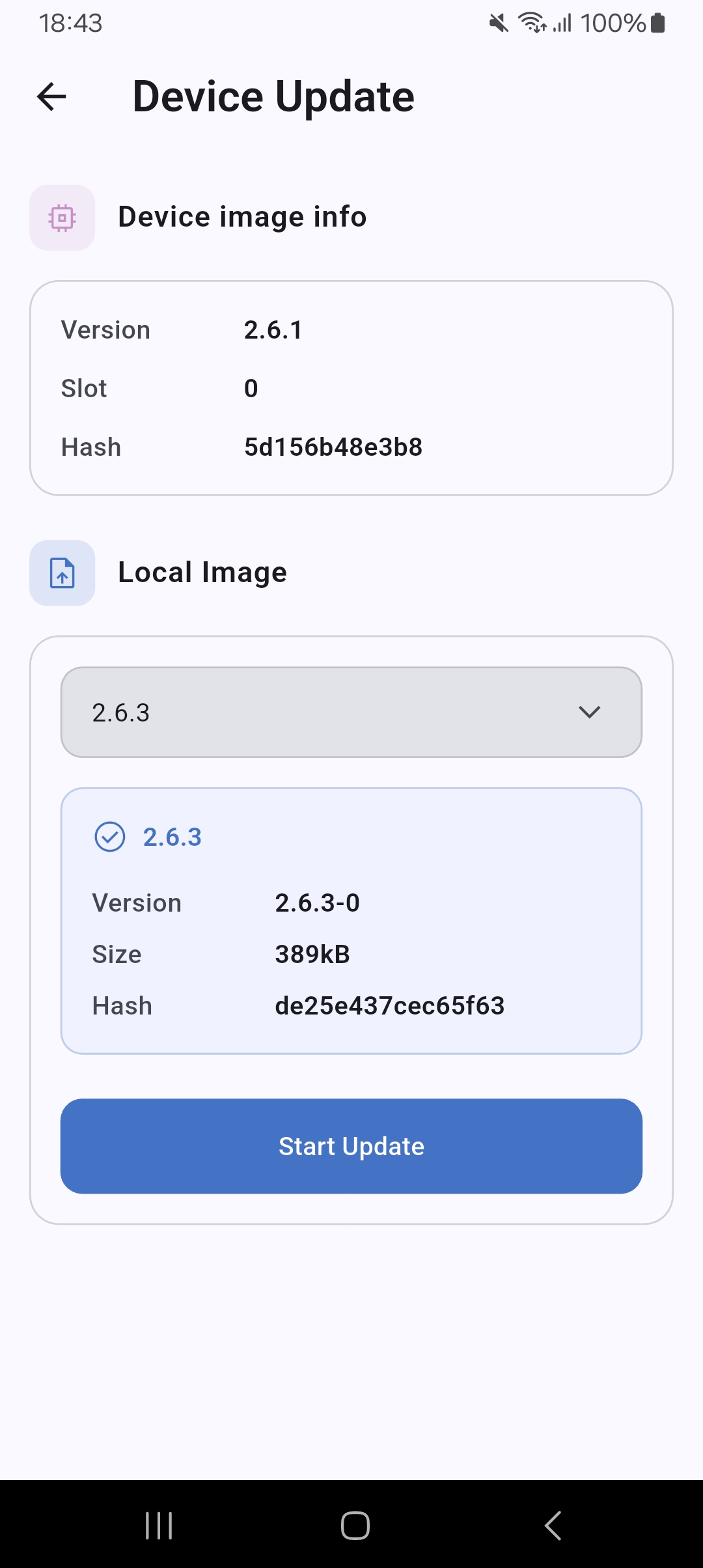
Important: The device must be in maintenance mode before a firmware update can begin. To enter maintenance mode, ensure the arms are connected to a power outlet, then press and hold the button for 10 seconds. The system splits into two distinct units (left and right). The FW Update card on the Device Control page will appear, and the firmware update must be performed on both units.
- From the Device Control page, tap FW Update.
- The current firmware version is displayed at the top of the page.
- Tap Select Firmware File, then choose the desired firmware from the dropdown menu and tap Confirm.
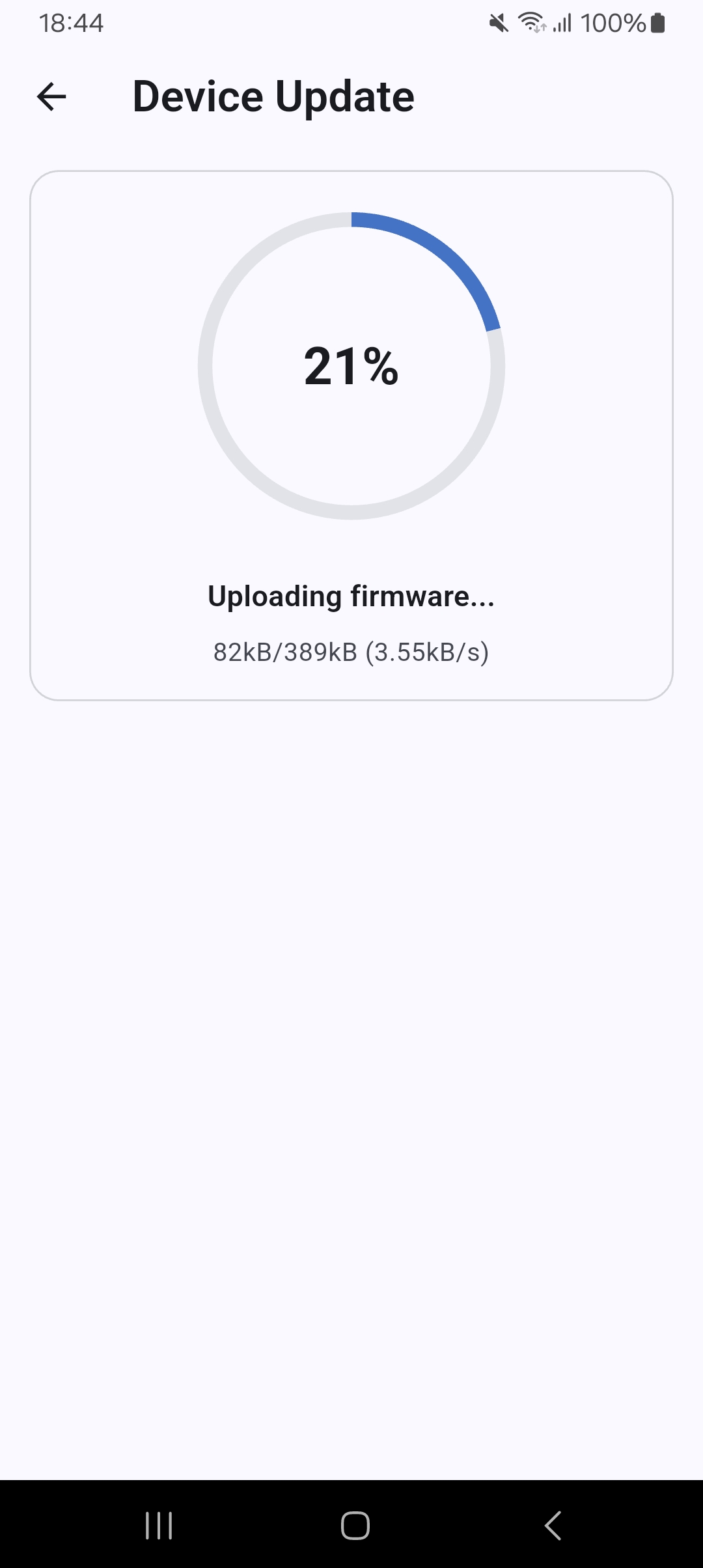
- The upload will begin — a progress bar shows the upload percentage.
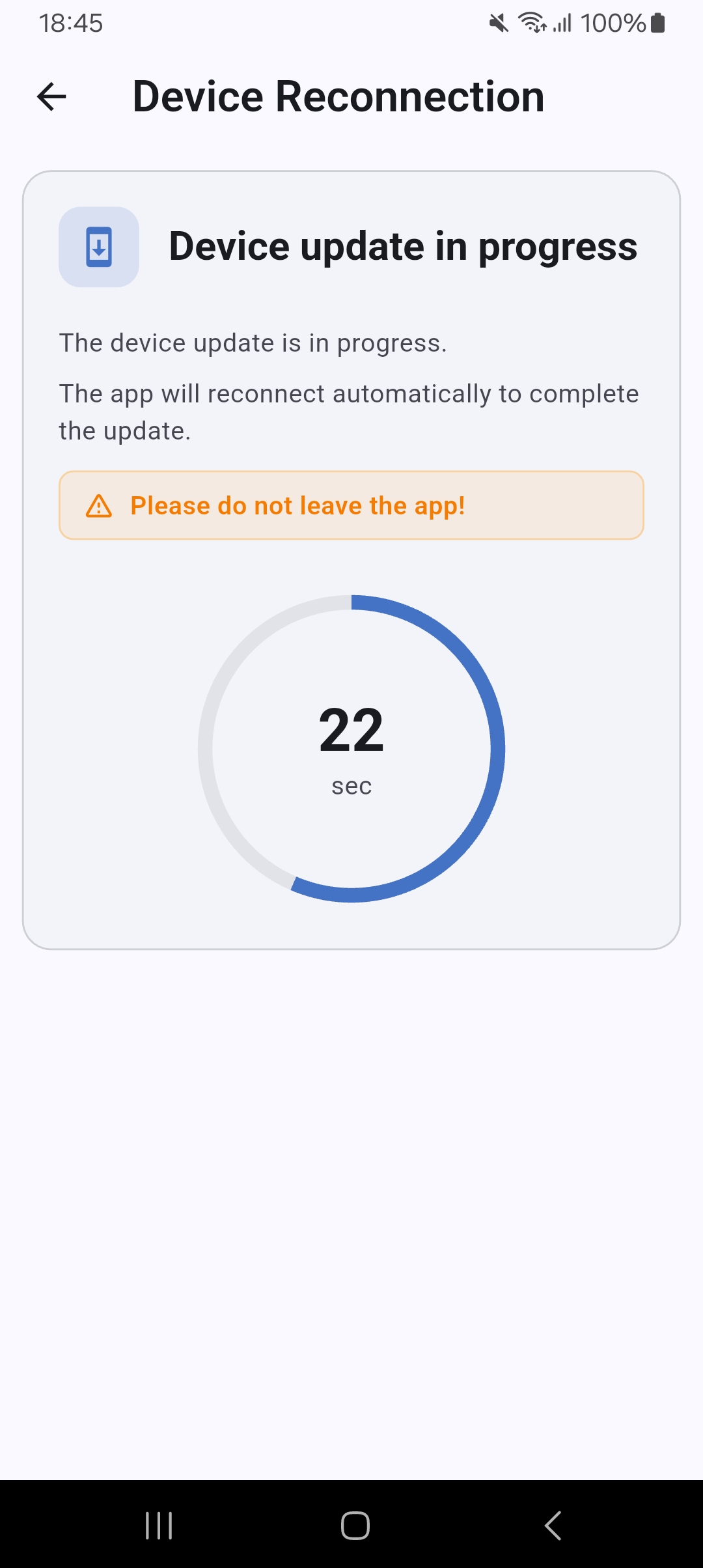
- When the upload is complete, the device will automatically reboot.
- The app will scan and reconnect to the device within ~40 seconds.
- After reconnection, the app verifies the firmware hash to confirm a successful update.
- Navigate back to the FW Update card on the Device Control page to confirm and finalize the update.
- If the slave unit also needs updating, you will be prompted to proceed with that.
- Exit maintenance mode by pressing and holding the power button for 10 seconds.
Do not close the app or turn off Bluetooth during the update.
Battery Status
- From the Device Control page, tap Battery.
- A dialog displays: Master unit battery percentage and charging status, Slave unit battery percentage (if available).
- Green — sufficient charge
- Orange — low battery
- Red — critically low
App Settings & Account
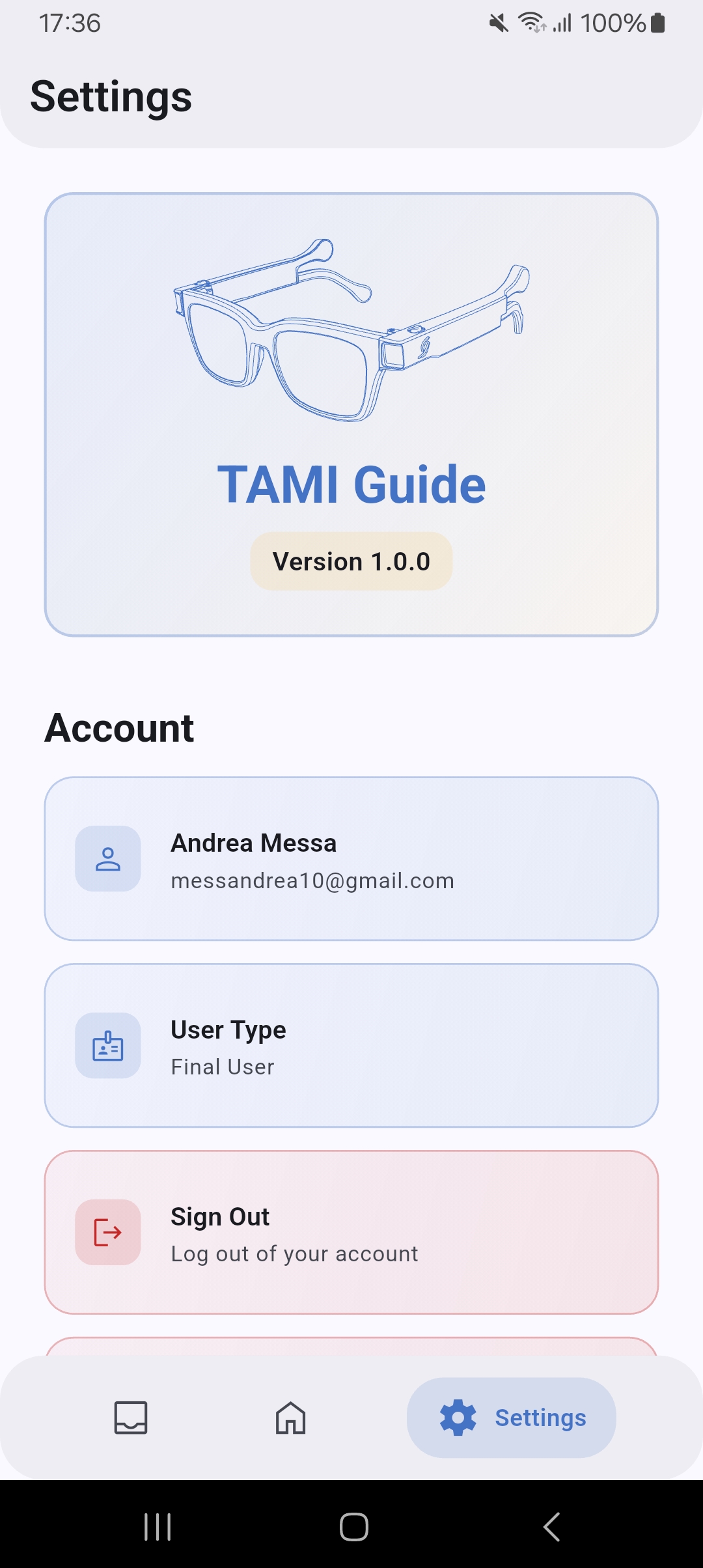
Open the Settings tab (gear icon) to manage your account and app preferences.
Account
| Action | Description |
|---|---|
| Profile info | Displays your name, email, and account type |
| Logout | Sign out of the current session |
| Delete account | Permanently remove your account (requires confirmation) |
| Report a bug | Open a dialog to submit a bug report |
About
| Item | Description |
|---|---|
| Privacy Policy | Link to the privacy policy |
| Terms of Service | Link to the terms of service |
| Website | Link to the LHT website |
| App version | Current version displayed on the settings header card |
Troubleshooting
| Problem | Solution |
|---|---|
| Device not appearing in Available Devices | Ensure Bluetooth is on, device is powered on, and you are within range. Pull down to refresh the list. |
| Connection fails or drops | Move closer to the device and try again. Restart both the app and the glasses. |
| Cannot start FW Update | The device must be in maintenance mode. Check with your distributor or refer to the device documentation. |
| Find My Glasses does not ring | Ensure the device is connected (shown in Connected Devices). If the dialog opens but nothing plays, the glasses may be out of BLE range. |
| Firmware update fails with hash mismatch | Ensure you are using the correct and uncorrupted .bin file. Contact LHT support if the issue persists. |
| Vibration is not felt | Check that Vibration Intensity is not set to Off. Also verify the Near/Far distance settings are appropriate for the environment. |
| App shows outdated newsletter | Pull down on the Inbox list to refresh. Check your internet connection. |
Lighthouse Tech
For support, submit a bug report from the Settings tab or visit lighthousetech.ch or email dev@lighthousetech.ch
Get TAMI® and experience a whole new way to navigate obstacles
Worldwide shipping.